The VicoHome app is a popular home security tool that connects seamlessly with smart cameras, offering features like live video streaming, motion detection alerts, and two-way audio communication. While the app is primarily designed for Android and iOS devices, many Chromebook users also want to benefit from its features. Thanks to Chromebooks' ability to run Android apps, you can easily get the VicoHome app on your device. This guide will walk you through how to install and use the VicoHome app on a Chromebook.
Why Use VicoHome on a Chromebook?
A Chromebook is an excellent device for running the VicoHome because of its:
Larger Screen: Provides a better view for monitoring live security footage.
Portability: Combines the convenience of a laptop with Android app compatibility.
Multi-Tasking Capabilities: Allows you to manage security feeds while working on other tasks.
With these advantages, using VicoHome on a Chrome OS can significantly enhance your home or office security setup.
Step 1: Check Chromebook Compatibility
Before proceeding, ensure your Chromebook supports Android apps.
Open your Settings menu.
Navigate to Apps and check if the option to enable Google Play Store is available.
If it’s not available, your Chromebook might not support Android apps.
Step 2: Enable Google Play Store
If your Chromebook supports the Google Play Store:
Go to Settings and click on Apps.
Find the Google Play Store section and click Turn On.
Agree to the terms and sign in with your Google account.
Step 3: Download the VicoHome App
Once the Google Play Store is enabled:
Open the Google Play Store from your Chromebook’s app launcher.
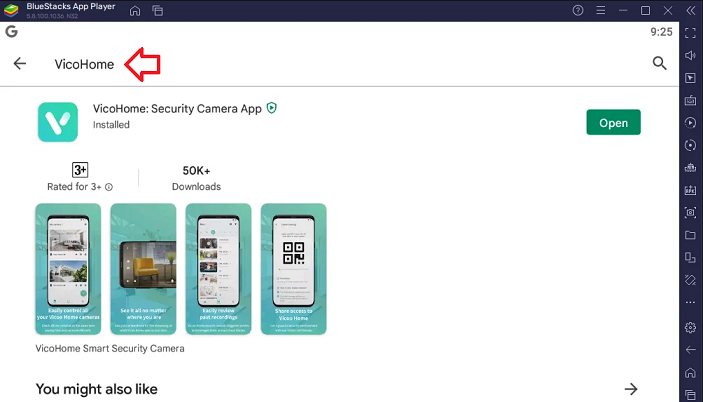
In the search bar, type VicoHome and hit Enter.
Select the official VicoHome app from the search results.
Click Install to download and install the app on your Chromebook.
Step 4: Launch and Set Up the App
After the installation is complete:
Open the VicoHome app from your app launcher.
Sign in with your existing account or create a new one if you’re a first-time user.
Grant necessary permissions, such as access to notifications and storage.
Pair your smart cameras by following the on-screen instructions.
Also Read: Easy method to install VicoHome on PC
If the VicoHome app isn’t available on the Google Play Store in your region, you can install it using an APK file. Here’s how:
Download a trusted APK file for VicoHome from a reliable source.
Enable Developer Mode on your Chromebook:
Turn off your Chromebook, then press Esc + Refresh + Power to reboot in recovery mode.
Follow the on-screen instructions to enable Developer Mode.
Allow installations from unknown sources:
Go to Settings > Apps > Manage Android Preferences > Security.
Enable Install from Unknown Sources.
Install the APK file:
Locate the APK file in your Downloads folder.
Click on it to begin the installation process.
Enhanced Monitoring: View multiple camera feeds simultaneously on a larger screen.
Effortless Management: Configure settings and review footage using a keyboard and touchpad.
Convenience: Access your home security system while working or browsing other apps.
Troubleshooting Tips
App Not Found in Play Store: Double-check your Chromebook’s compatibility with Android apps or consider installing via APK.
Pairing Issues with Cameras: Ensure your Chromebook and cameras are on the same Wi-Fi network. Restart the app and the cameras if needed.
Performance Problems: Close unused apps or tabs to free up system resources.
Conclusion
Using the VicoHome app on a Chromebook is a smart way to take advantage of its powerful security features on a larger screen. Whether you download it directly from the Google Play Store or sideload it via an APK, the process is straightforward. With VicoHome app, you can monitor your property effortlessly and enjoy peace of mind.
Start securing your home or office today by downloading the VicoHome app on your Chromebook and experience smarter, more convenient home security management!